<?xml version="1.0" encoding="utf-8"?><feed xmlns="http://www.w3.org/2005/Atom" ><generator uri="https://jekyllrb.com/" version="3.10.0">Jekyll</generator><link href="https://nikitahl.com/feed.xml" rel="self" type="application/atom+xml" /><link href="https://nikitahl.com/" rel="alternate" type="text/html" /><updated>2026-02-25T21:13:11+00:00</updated><id>https://nikitahl.com/feed.xml</id><title type="html">Nikita Hlopov</title><subtitle>Blog about web development</subtitle><entry><title type="html">How to open the WordPress Media Library with an Upload files tab by default</title><link href="https://nikitahl.com/open-media-library-with-upload-tab" rel="alternate" type="text/html" title="How to open the WordPress Media Library with an Upload files tab by default" /><published>2026-02-25T00:00:00+00:00</published><updated>2026-02-25T00:00:00+00:00</updated><id>https://nikitahl.com/open-media-library-with-upload-tab</id><content type="html" xml:base="https://nikitahl.com/open-media-library-with-upload-tab"><![CDATA[<p>By default, the Media Library in WordPress opens up with a list of media files to select from. However, you can set the default tab to Upload files with a single property.</p>

<p class="note">
💡 NOTE: First, make sure the global <code>wp.media</code> object is available in your <code>window</code> scope.
</p>

<p>If <code class="language-plaintext highlighter-rouge">wp.media</code> is not available, ensure the Media Library scripts are enqueued in PHP via:</p>

<div class="language-php highlighter-rouge"><div class="highlight"><pre class="highlight"><code> <span class="nf">wp_enqueue_media</span><span class="p">();</span>
</code></pre></div></div>

<p>Full reference is available in the <a href="https://codex.wordpress.org/Javascript_Reference/wp.media#Enqueue_Required_Media_Script" target="_blank">WordPress codex</a>.</p>

<p>In JavaScript, create a frame.</p>

<div class="language-javascript highlighter-rouge"><div class="highlight"><pre class="highlight"><code><span class="kd">const</span> <span class="nx">myFrame</span> <span class="o">=</span> <span class="nx">wp</span><span class="p">.</span><span class="nx">media</span><span class="p">({</span>
        <span class="na">title</span><span class="p">:</span> <span class="dl">'</span><span class="s1">Add images</span><span class="dl">'</span><span class="p">,</span>
        <span class="na">library</span><span class="p">:</span> <span class="p">{</span>
          <span class="na">type</span><span class="p">:</span> <span class="dl">'</span><span class="s1">image</span><span class="dl">'</span>
        <span class="p">}</span>
      <span class="p">});</span>
</code></pre></div></div>

<p>Use the <code class="language-plaintext highlighter-rouge">open</code> method to open the actual Media Library:</p>

<div class="language-javascript highlighter-rouge"><div class="highlight"><pre class="highlight"><code><span class="nx">myFrame</span><span class="p">.</span><span class="nx">open</span><span class="p">()</span>
</code></pre></div></div>

<p>The config above will open Media Library with the <em>“Add media”</em> tab by default, where all the media files are listed.</p>

<figure class="figure-centered">
  <img class="shadow" loading="lazy" src="/images/wordpress/wordpress-media-library-media-list.png" alt="Default WordPress Media Library panel" />
  <figcaption>Default WordPress Media Library panel</figcaption>
</figure>

<p>To open the Media Library with the Upload files tab by default, you’ll need to specify an additional property in your frame’s <a href="https://atimmer.github.io/wordpress-jsdoc/wp.media.controller.Library.html" target="_blank"><code class="language-plaintext highlighter-rouge">Library</code> object</a>.</p>

<p>That is the <code class="language-plaintext highlighter-rouge">contentUserSetting</code> property, which should be set to <code class="language-plaintext highlighter-rouge">false</code>; by default, it is set to <code class="language-plaintext highlighter-rouge">true</code>.</p>

<p>If you’re using a single frame without any states, you can just add this snippet to your code. Which will set the <code class="language-plaintext highlighter-rouge">contentUserSetting</code> property’s value.</p>

<div class="language-javascript highlighter-rouge"><div class="highlight"><pre class="highlight"><code><span class="nx">wp</span><span class="p">.</span><span class="nx">media</span><span class="p">.</span><span class="nx">controller</span><span class="p">.</span><span class="nx">Library</span><span class="p">.</span><span class="nx">prototype</span><span class="p">.</span><span class="nx">defaults</span><span class="p">.</span><span class="nx">contentUserSetting</span> <span class="o">=</span> <span class="kc">false</span><span class="p">;</span>
</code></pre></div></div>

<p>Then, on the next Media Library frame open, you should see the Upload files tab active by default.</p>

<figure class="figure-centered">
  <img class="shadow" loading="lazy" src="/images/wordpress/wordpress-media-library-upload-files.png" alt="WordPress Media Library panel with active Upload tab" />
  <figcaption>WordPress Media Library panel with active Upload tab</figcaption>
</figure>

<p>Similarly, if you use states with your frame, then for the upload state, set the <code class="language-plaintext highlighter-rouge">contentUserSetting</code> property.</p>

<div class="language-javascript highlighter-rouge"><div class="highlight"><pre class="highlight"><code><span class="kd">const</span> <span class="nx">myFrame</span> <span class="o">=</span> <span class="nx">wp</span><span class="p">.</span><span class="nx">media</span><span class="p">({</span>
  <span class="na">state</span><span class="p">:</span> <span class="dl">'</span><span class="s1">select</span><span class="dl">'</span><span class="p">,</span> <span class="c1">// Default state of the frame</span>
  <span class="na">title</span><span class="p">:</span> <span class="dl">'</span><span class="s1">Select images</span><span class="dl">'</span><span class="p">,</span>
  <span class="na">library</span><span class="p">:</span> <span class="p">{</span>
    <span class="na">type</span><span class="p">:</span> <span class="dl">'</span><span class="s1">image</span><span class="dl">'</span>
  <span class="p">},</span>
  <span class="na">states</span><span class="p">:</span> <span class="p">[</span>
    <span class="k">new</span> <span class="nx">wp</span><span class="p">.</span><span class="nx">media</span><span class="p">.</span><span class="nx">controller</span><span class="p">.</span><span class="nx">Library</span><span class="p">({</span>
      <span class="na">id</span><span class="p">:</span> <span class="dl">'</span><span class="s1">upload</span><span class="dl">'</span><span class="p">,</span>
      <span class="na">title</span><span class="p">:</span> <span class="dl">'</span><span class="s1">Upload image</span><span class="dl">'</span><span class="p">,</span>
      <span class="na">contentUserSetting</span><span class="p">:</span> <span class="kc">false</span> <span class="c1">// Make an upload file tab open by default</span>
    <span class="p">}),</span>
    <span class="k">new</span> <span class="nx">wp</span><span class="p">.</span><span class="nx">media</span><span class="p">.</span><span class="nx">controller</span><span class="p">.</span><span class="nx">Library</span><span class="p">({</span>
      <span class="na">id</span><span class="p">:</span> <span class="dl">'</span><span class="s1">select</span><span class="dl">'</span><span class="p">,</span>
      <span class="na">title</span><span class="p">:</span> <span class="dl">'</span><span class="s1">Select images</span><span class="dl">'</span>
    <span class="p">})</span>
  <span class="p">]</span>
<span class="p">});</span>
</code></pre></div></div>

<p>Then, after you change the state, the Upload tab will be active on the next opening of the frame.</p>

<div class="language-javascript highlighter-rouge"><div class="highlight"><pre class="highlight"><code><span class="nx">myFrame</span><span class="p">.</span><span class="nx">setState</span><span class="p">(</span><span class="dl">'</span><span class="s1">upload</span><span class="dl">'</span><span class="p">);</span>
<span class="nx">myFrame</span><span class="p">.</span><span class="nx">open</span><span class="p">();</span>
</code></pre></div></div>

<figure class="figure-centered">
  <img class="shadow" loading="lazy" src="/images/wordpress/wordpress-media-library-states.png" alt="WordPress Media Library panel with different states toolbar" />
  <figcaption>WordPress Media Library panel with different states toolbar</figcaption>
</figure>]]></content><author><name></name></author><category term="javascript" /><category term="wordpress" /><summary type="html"><![CDATA[A short guide explaining how to open the Media Library in WordPress, with the Upload files tab by default, using JavaScript.]]></summary></entry><entry><title type="html">Simple carousel-like slider with pure CSS</title><link href="https://nikitahl.com/simple-css-carousel-slider" rel="alternate" type="text/html" title="Simple carousel-like slider with pure CSS" /><published>2024-10-04T09:08:12+00:00</published><updated>2024-10-04T09:08:12+00:00</updated><id>https://nikitahl.com/simple-css-carousel-slider</id><content type="html" xml:base="https://nikitahl.com/simple-css-carousel-slider"><![CDATA[<p>In this article, I’ll show you how to build a simple yet elegant CSS-only carousel slider for smooth, automatic scrolling.</p>

<p>Unlike <a href="/scroll-snap-css">other carousels</a> that allow users to manually scroll, this one will autoplay infinitely, pausing on hover.</p>

<p>It won’t have any controls; it will just scroll smoothly from side to side, highlighting specific items.</p>

<figure class="figure-centered">
  <img class="shadow" loading="lazy" src="/images/misc/css-carousel.gif" alt="CSS carousel example" />
</figure>

<h2 id="markup">Markup</h2>

<p>I will wrap the carousel element inside a wrapper that spans the full width of the page. This wrapper is essential for properly positioning the carousel and ensuring it takes up the entire page width.</p>

<p>Let’s use a <code class="language-plaintext highlighter-rouge">section</code> element with a class name of <code class="language-plaintext highlighter-rouge">carousel-section</code>, as it may also contain other content, such as text and images.</p>

<div class="language-html highlighter-rouge"><div class="highlight"><pre class="highlight"><code><span class="nt">&lt;section</span> <span class="na">class=</span><span class="s">"carousel-section"</span><span class="nt">&gt;</span>
  <span class="nt">&lt;div</span> <span class="na">class=</span><span class="s">"css-carousel"</span><span class="nt">&gt;</span>
    ...
  <span class="nt">&lt;/div&gt;</span>
<span class="nt">&lt;/section&gt;</span>
</code></pre></div></div>

<p>For the sake of this example, I’ll use plain images as carousel slides, but any other content can be used as well.</p>

<div class="language-html highlighter-rouge"><div class="highlight"><pre class="highlight"><code><span class="nt">&lt;section</span> <span class="na">class=</span><span class="s">"carousel-section"</span><span class="nt">&gt;</span>
  <span class="nt">&lt;div</span> <span class="na">class=</span><span class="s">"css-carousel"</span><span class="nt">&gt;</span>
    <span class="nt">&lt;figure&gt;</span>
      <span class="nt">&lt;img</span> <span class="na">src=</span><span class="s">"img-1.png"</span> <span class="na">alt=</span><span class="s">"First slide"</span><span class="nt">&gt;</span>
    <span class="nt">&lt;/figure&gt;</span>
    <span class="nt">&lt;figure&gt;</span>
      <span class="nt">&lt;img</span> <span class="na">src=</span><span class="s">"img-2.png"</span> <span class="na">alt=</span><span class="s">"Second slide"</span><span class="nt">&gt;</span>
    <span class="nt">&lt;/figure&gt;</span> 
    <span class="nt">&lt;figure&gt;</span>
      <span class="nt">&lt;img</span> <span class="na">src=</span><span class="s">"img-3.png"</span> <span class="na">alt=</span><span class="s">"Third slide"</span><span class="nt">&gt;</span>
    <span class="nt">&lt;/figure&gt;</span> 
    <span class="c">&lt;!-- Add more images below ... --&gt;</span>
  <span class="nt">&lt;/div&gt;</span>
<span class="nt">&lt;/section&gt;</span>
</code></pre></div></div>

<p>Once you’ve added the necessary markup, make sure to include enough slide elements so that the carousel has sufficient content to scroll through.</p>

<h2 id="styles">Styles</h2>

<p>To make this carousel function properly, the first step is to add <code class="language-plaintext highlighter-rouge">overflow: hidden</code> to the wrapper element.</p>

<div class="language-css highlighter-rouge"><div class="highlight"><pre class="highlight"><code><span class="nc">.carousel-section</span> <span class="p">{</span>
  <span class="nl">overflow</span><span class="p">:</span> <span class="nb">hidden</span><span class="p">;</span>
<span class="p">}</span>
</code></pre></div></div>

<p>For the carousel element, the slides need to align horizontally and occupy the full width. We’ll use <code class="language-plaintext highlighter-rouge">display: flex</code> along with a few other rules to improve its appearance.</p>

<div class="language-css highlighter-rouge"><div class="highlight"><pre class="highlight"><code><span class="nc">.css-carousel</span> <span class="p">{</span>
  <span class="nl">display</span><span class="p">:</span> <span class="n">flex</span><span class="p">;</span>
  <span class="nl">align-items</span><span class="p">:</span> <span class="n">stretch</span><span class="p">;</span>
  <span class="py">gap</span><span class="p">:</span> <span class="m">3px</span><span class="p">;</span>
<span class="p">}</span>
</code></pre></div></div>

<p>We’ll need to specify both the width and height for the image elements.</p>

<div class="language-css highlighter-rouge"><div class="highlight"><pre class="highlight"><code><span class="nc">.css-carousel</span> <span class="nt">img</span> <span class="p">{</span>
  <span class="nl">display</span><span class="p">:</span> <span class="n">inline-block</span><span class="p">;</span>
  <span class="nl">margin</span><span class="p">:</span> <span class="m">0</span><span class="p">;</span>
  <span class="nl">padding</span><span class="p">:</span> <span class="m">0</span><span class="p">;</span>
  <span class="nl">width</span><span class="p">:</span> <span class="m">400px</span><span class="p">;</span>
  <span class="nl">height</span><span class="p">:</span> <span class="m">100%</span><span class="p">;</span>
<span class="p">}</span>
</code></pre></div></div>

<p>The objective of this carousel is to scroll infinitely. We can make it move from one end to the other, looping back continuously.</p>

<p>The trickiest part is specifying the correct value at which the carousel will scroll. This value represents the portion of the carousel that extends outside the viewport.</p>

<p>To calculate this <u>offset</u> value, we’ll use a mathematical formula. The final value must be negative, as the carousel will start moving to the left along the X-axis.</p>

<div class="language-plaintext highlighter-rouge"><div class="highlight"><pre class="highlight"><code>O - offset
SW - slide width
SC - slice count
VW - viewport width (in percent)

O = -(SW × SC) - VW
</code></pre></div></div>

<figure class="figure-centered">
  <img class="shadow" loading="lazy" src="/images/misc/carousel-structure.webp" alt="Carousel structure on a page" />
  <figcaption>Carousel structure on a page</figcaption>
</figure>

<p>We’ll use <a href="https://developer.mozilla.org/en-US/docs/Web/CSS/Using_CSS_custom_properties" target="_blank">CSS custom properties (variables)</a> and the <a href="https://developer.mozilla.org/en-US/docs/Web/CSS/calc" target="_blank"><code class="language-plaintext highlighter-rouge">calc()</code></a> function to compute the offset value.</p>

<p class="note">
💡 NOTE: To make the offset value negative, we’ll subtract it from 0.
</p>

<div class="language-css highlighter-rouge"><div class="highlight"><pre class="highlight"><code><span class="nd">:root</span> <span class="p">{</span>
  <span class="py">--slide-count</span><span class="p">:</span> <span class="m">6</span><span class="p">;</span> <span class="c">/* number of slides in the carousel */</span>
  <span class="py">--slide-width</span><span class="p">:</span> <span class="m">400px</span><span class="p">;</span> <span class="c">/* width of a single slide */</span>
  <span class="py">--carousel-edge-pos</span><span class="p">:</span>
      <span class="n">calc</span><span class="p">(</span> <span class="m">0%</span> <span class="n">-</span> <span class="p">((</span><span class="n">var</span><span class="p">(</span><span class="n">--slide-width</span><span class="p">)</span> <span class="err">*</span> <span class="n">var</span><span class="p">(</span><span class="n">--slide-count</span><span class="p">))</span> <span class="n">-</span> <span class="m">100%</span><span class="p">)</span> <span class="p">);</span> <span class="c">/* formula to calulate the offset value */</span>
<span class="p">}</span>
</code></pre></div></div>

<p>Lastly, we’ll add an animation to the carousel element and enable it to pause on hover.</p>

<p>The animation will manipulate the <code class="language-plaintext highlighter-rouge">translateX</code> property, causing the carousel to move horizontally.</p>

<div class="language-css highlighter-rouge"><div class="highlight"><pre class="highlight"><code><span class="nc">.css-carousel</span> <span class="p">{</span>
  <span class="c">/* ... */</span>
  <span class="nl">-webkit-overflow-scrolling</span><span class="p">:</span> <span class="n">touch</span><span class="p">;</span>
  <span class="nl">animation</span><span class="p">:</span> <span class="nb">scroll</span> <span class="m">40s</span> <span class="n">linear</span> <span class="n">alternate</span> <span class="n">infinite</span><span class="p">;</span>
  <span class="nl">animation-play-state</span><span class="p">:</span> <span class="n">running</span><span class="p">;</span>
<span class="p">}</span>

<span class="nc">.css-carousel</span><span class="nd">:hover</span> <span class="p">{</span>
  <span class="nl">animation-play-state</span><span class="p">:</span> <span class="n">paused</span><span class="p">;</span>
<span class="p">}</span>

<span class="k">@keyframes</span> <span class="nb">scroll</span> <span class="p">{</span>
  <span class="nt">from</span> <span class="p">{</span>
    <span class="nl">transform</span><span class="p">:</span> <span class="n">translateX</span><span class="p">(</span><span class="m">0</span><span class="p">);</span>
  <span class="p">}</span>
  <span class="nt">to</span> <span class="p">{</span>
    <span class="nl">transform</span><span class="p">:</span> <span class="n">translateX</span><span class="p">(</span><span class="n">var</span><span class="p">(</span><span class="n">--carousel-edge-pos</span><span class="p">));</span>
  <span class="p">}</span>
<span class="p">}</span>
</code></pre></div></div>

<p>Complete CSS code:</p>

<div class="language-css highlighter-rouge"><div class="highlight"><pre class="highlight"><code><span class="nd">:root</span> <span class="p">{</span>
  <span class="py">--slide-count</span><span class="p">:</span> <span class="m">6</span><span class="p">;</span> <span class="c">/* number of slides in the carousel */</span>
  <span class="py">--slide-width</span><span class="p">:</span> <span class="m">400px</span><span class="p">;</span> <span class="c">/* width of a single slide */</span>
  <span class="py">--carousel-edge-pos</span><span class="p">:</span>
      <span class="n">calc</span><span class="p">(</span> <span class="m">0%</span> <span class="n">-</span> <span class="p">((</span><span class="n">var</span><span class="p">(</span><span class="n">--slide-width</span><span class="p">)</span> <span class="err">*</span> <span class="n">var</span><span class="p">(</span><span class="n">--slide-count</span><span class="p">))</span> <span class="n">-</span> <span class="m">100%</span><span class="p">)</span> <span class="p">);</span> <span class="c">/* formula to calulate the offset value */</span>
<span class="p">}</span>

<span class="nc">.carousel-section</span> <span class="p">{</span>
  <span class="nl">overflow</span><span class="p">:</span> <span class="nb">hidden</span><span class="p">;</span>
<span class="p">}</span>

<span class="nc">.css-carousel</span> <span class="p">{</span>
  <span class="nl">display</span><span class="p">:</span> <span class="n">flex</span><span class="p">;</span>
  <span class="nl">align-items</span><span class="p">:</span> <span class="n">stretch</span><span class="p">;</span>
  <span class="py">gap</span><span class="p">:</span> <span class="m">3px</span><span class="p">;</span>

  <span class="nl">-webkit-overflow-scrolling</span><span class="p">:</span> <span class="n">touch</span><span class="p">;</span>
  <span class="nl">animation</span><span class="p">:</span> <span class="nb">scroll</span> <span class="m">40s</span> <span class="n">linear</span> <span class="n">alternate</span> <span class="n">infinite</span><span class="p">;</span>
  <span class="nl">animation-play-state</span><span class="p">:</span> <span class="n">running</span><span class="p">;</span>
<span class="p">}</span>

<span class="nc">.css-carousel</span><span class="nd">:hover</span> <span class="p">{</span>
  <span class="nl">animation-play-state</span><span class="p">:</span> <span class="n">paused</span><span class="p">;</span>
<span class="p">}</span>

<span class="nc">.css-carousel</span> <span class="nt">img</span> <span class="p">{</span>
  <span class="nl">display</span><span class="p">:</span> <span class="n">inline-block</span><span class="p">;</span>
  <span class="nl">margin</span><span class="p">:</span> <span class="m">0</span><span class="p">;</span>
  <span class="nl">padding</span><span class="p">:</span> <span class="m">0</span><span class="p">;</span>
  <span class="nl">width</span><span class="p">:</span> <span class="n">var</span><span class="p">(</span><span class="n">--slide-width</span><span class="p">);</span>
  <span class="nl">height</span><span class="p">:</span> <span class="m">100%</span><span class="p">;</span>
<span class="p">}</span>

<span class="k">@keyframes</span> <span class="nb">scroll</span> <span class="p">{</span>
  <span class="nt">from</span> <span class="p">{</span>
    <span class="nl">transform</span><span class="p">:</span> <span class="n">translateX</span><span class="p">(</span><span class="m">0</span><span class="p">);</span>
  <span class="p">}</span>
  <span class="nt">to</span> <span class="p">{</span>
    <span class="nl">transform</span><span class="p">:</span> <span class="n">translateX</span><span class="p">(</span><span class="n">var</span><span class="p">(</span><span class="n">--carousel-edge-pos</span><span class="p">));</span>
  <span class="p">}</span>
<span class="p">}</span>
</code></pre></div></div>

<h2 id="demo">Demo</h2>

<p>You can find a full demo with a complete code example on my CodePen. The demo also includes additional styling to enhance the appearance and functionality of the carousel:</p>

<p class="codepen" data-height="438.140380859375" data-default-tab="result" data-slug-hash="NWQxvJN" data-pen-title="Untitled" data-preview="true" data-user="nikitahl" style="height: 438.140380859375px; box-sizing: border-box; display: flex; align-items: center; justify-content: center; border: 2px solid; margin: 1em 0; padding: 1em;">
  <span>See the Pen <a href="https://codepen.io/nikitahl/pen/NWQxvJN">
  Untitled</a> by Nikita Hlopov (<a href="https://codepen.io/nikitahl">@nikitahl</a>)
  on <a href="https://codepen.io">CodePen</a>.</span>
</p>]]></content><author><name></name></author><category term="css" /><summary type="html"><![CDATA[Learn how to create a sleek, autoplaying CSS-only carousel that smoothly scrolls through items and pauses on hover, without the need for any JavaScript or controls.]]></summary></entry><entry><title type="html">How to lazy load CodePen and CanIUse embeds</title><link href="https://nikitahl.com/how-to-lazy-load-codepen-and-caniuse-embeds" rel="alternate" type="text/html" title="How to lazy load CodePen and CanIUse embeds" /><published>2024-02-27T19:50:17+00:00</published><updated>2024-02-27T19:50:17+00:00</updated><id>https://nikitahl.com/how-to-lazy-load-codepen-and-caniuse-embeds</id><content type="html" xml:base="https://nikitahl.com/how-to-lazy-load-codepen-and-caniuse-embeds"><![CDATA[<p>CodePen and CanIUse embeds that are often used on blog posts require the load of a lot of resources, and usually, this is done on the initial page load.</p>

<ol>
  <li><a href="#problem-with-embeds">Problem with embeds</a></li>
  <li><a href="#solution-is-to-lazy-load">Solution is to lazy load</a></li>
</ol>

<h2 id="problem-with-embeds">Problem with embeds</h2>

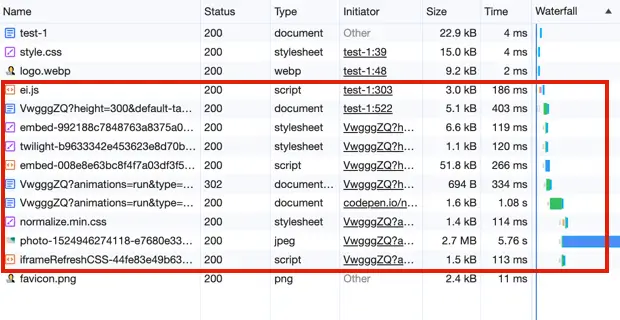
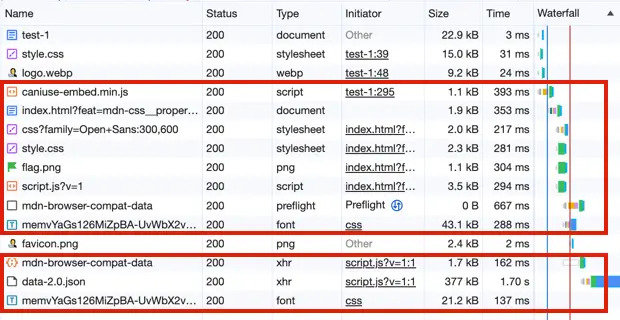
<p>This poses a significant performance issue, particularly when the embed isn’t immediately visible on the page. And I’m not just referring to <a href="https://blog.codepen.io/documentation/embedded-pens/" target="_blank">CodePen</a> and <a href="https://caniuse.bitsofco.de/" target="_blank">CanIUse</a>; this applies to any third-party embed on the page.</p>

<p>While CodePen offers some <a href="https://blog.codepen.io/documentation/embedded-pens/#pen-previews" target="_blank">optimization</a> options, such as using the <em>Click-to-Load</em> feature on an embed or employing the <code class="language-plaintext highlighter-rouge">loading="lazy"</code> attribute on an <code class="language-plaintext highlighter-rouge">iframe</code> to <a href="/defer-css-and-javascript">defer the load</a>, further optimization is still possible.</p>

<style>
.image-grid{display:flex;justify-content:space-evenly;flex-wrap:wrap;margin:30px 0}
.image-grid figcaption{font-size:13px;color:#666;font-style:italic;text-align:center}
.image-grid figure{margin:0 10px 30px;flex:0 0 47%}
.vertical{width:60%}
</style>

<div class="image-grid">
  <figure>
    <img class="shadow" loading="lazy" src="/images/dev-tools/codepen-embed-resources.webp" alt="CodePen embed resources" />
    <figcaption>CodePen embed resources</figcaption>
  </figure>
  <figure>
    <img class="shadow" loading="lazy" src="/images/dev-tools/caniuse-embed-resources.webp" alt="CanIUse embed resources" />
    <figcaption>CanIUse embed resources</figcaption>
  </figure>
</div>

<p>The number of resources loaded depends on the content of an embed, and in some cases, it can be substantial, such as numerous and/or large images.</p>

<p>These resources are deemed <a href="https://web.dev/render-blocking-resources/" target="_blank">render-blocking</a>, implying that loading them during the initial page load significantly <a href="https://web.dev/articles/lcp" target="_blank">impacts the page’s speed</a>, a <a href="https://web.dev/learn/performance/why-speed-matters" target="_blank">critical aspect</a> of web page performance.</p>

<p>I’ve encountered this issue for some time, as I incorporate many of these embeds on my blog to showcase my work and offer information about browser support for a feature.</p>

<h2 id="solution-is-to-lazy-load">Solution is to lazy load</h2>

<p>I decided to write a custom script to <a href="/lazy-load-images">lazy load</a> these embeds and optimize my blog posts for load speed.</p>

<p>The solution is quite simple: utilize the <a href="https://developer.mozilla.org/en-US/docs/Web/API/Intersection_Observer_API" target="_blank">Intersection Observer API</a> to determine if the embed is sufficiently close to the edge of the screen to initiate resource downloading.</p>

<p>The first step involves pasting the embed HTML code, but excluding the <code class="language-plaintext highlighter-rouge">script</code> tag. The <code class="language-plaintext highlighter-rouge">script</code> contains code to fetch the necessary resources for the embed.</p>

<p>So in case of CanIUse, the HTML will appear as follows:</p>

<div class="language-html highlighter-rouge"><div class="highlight"><pre class="highlight"><code><span class="nt">&lt;p</span> <span class="na">style=</span><span class="s">"background:pink;padding:50px 0;"</span> <span class="na">class=</span><span class="s">"ciu_embed"</span> <span class="na">data-feature=</span><span class="s">"mdn-css__properties__-webkit-text-stroke-width"</span> <span class="na">data-periods=</span><span class="s">"future_1,current,past_1"</span> <span class="na">data-accessible-colours=</span><span class="s">"false"</span><span class="nt">&gt;</span>
  Data on support for the <span class="nt">&lt;a</span> <span class="na">href=</span><span class="s">"https://caniuse.com/text-stroke"</span> <span class="na">target=</span><span class="s">"_blank"</span><span class="nt">&gt;</span>-webkit-text-stroke-width<span class="nt">&lt;/a&gt;</span> feature across the major browsers
<span class="nt">&lt;/p&gt;</span>
</code></pre></div></div>

<p>Next, we’ll need to write a small JavaScript snippet to properly handle embed lazy loading.</p>

<p>The following JavaScript code will verify if the embed element is within 400px of the edge of the screen and will then append the embed script to the <code class="language-plaintext highlighter-rouge">body</code> element, thereby triggering the resource download.</p>

<p>Below is my JavaScript snippet with comments for explanation:</p>

<div class="language-javascript highlighter-rouge"><div class="highlight"><pre class="highlight"><code><span class="c1">// Get all CodePen and CanIUse embeds</span>
<span class="kd">const</span> <span class="nx">embeds</span> <span class="o">=</span> <span class="nb">document</span><span class="p">.</span><span class="nx">querySelectorAll</span><span class="p">(</span><span class="dl">"</span><span class="s2">.codepen, .ciu_embed</span><span class="dl">"</span><span class="p">);</span>

<span class="c1">// Execute further code only if embeds exist on the page</span>
<span class="k">if</span> <span class="p">(</span><span class="nx">embeds</span><span class="p">.</span><span class="nx">length</span><span class="p">)</span> <span class="p">{</span>
  <span class="c1">// Set flags if resources for embeds are already loaded</span>
  <span class="kd">let</span> <span class="nx">isCpLoaded</span> <span class="o">=</span> <span class="kc">false</span><span class="p">;</span>
  <span class="kd">let</span> <span class="nx">isCiuLoaded</span> <span class="o">=</span> <span class="kc">false</span><span class="p">;</span>

  <span class="c1">// Specify options for IntersectionObserver</span>
  <span class="c1">// rootMargin is the top and bottom margin that represents</span>
  <span class="c1">// the value to the edge of the screen of the embed</span>
  <span class="kd">const</span> <span class="nx">options</span> <span class="o">=</span> <span class="p">{</span>
    <span class="na">root</span><span class="p">:</span> <span class="kc">null</span><span class="p">,</span>
    <span class="na">rootMargin</span><span class="p">:</span> <span class="dl">"</span><span class="s2">400px 0px</span><span class="dl">"</span><span class="p">,</span> 
    <span class="na">threshold</span><span class="p">:</span> <span class="mi">0</span>
  <span class="p">};</span>

  <span class="c1">// Create the Intersection Observer from the IntersectionObserver constructor</span>
  <span class="kd">const</span> <span class="nx">intersectionObserver</span> <span class="o">=</span> <span class="k">new</span> <span class="nx">IntersectionObserver</span><span class="p">((</span><span class="nx">entries</span><span class="p">,</span> <span class="nx">observer</span><span class="p">)</span> <span class="o">=&gt;</span> <span class="p">{</span>
    <span class="nx">entries</span><span class="p">.</span><span class="nx">forEach</span><span class="p">((</span><span class="nx">entry</span><span class="p">)</span> <span class="o">=&gt;</span> <span class="p">{</span>
      <span class="c1">// Ensure if the element is intersecting the edge of the screen</span>
      <span class="k">if</span> <span class="p">(</span><span class="nx">entry</span><span class="p">.</span><span class="nx">isIntersecting</span><span class="p">)</span> <span class="p">{</span>
        <span class="c1">// Define the embed element</span>
        <span class="kd">const</span> <span class="nx">embed</span> <span class="o">=</span> <span class="nx">entry</span><span class="p">.</span><span class="nx">target</span><span class="p">;</span>
        <span class="c1">// Define the script source variable</span>
        <span class="kd">let</span> <span class="nx">src</span> <span class="o">=</span> <span class="dl">""</span><span class="p">;</span>
        <span class="c1">// Based on the condition set the source variable equal to embed script path</span>
        <span class="c1">// do it only once, because we don't need to run the code multiple times,</span>
        <span class="c1">// once the resourses have already loaded</span>
        <span class="k">if</span> <span class="p">(</span><span class="o">!</span><span class="nx">isCiuLoaded</span> <span class="o">&amp;&amp;</span> <span class="nx">embed</span><span class="p">.</span><span class="nx">classList</span><span class="p">.</span><span class="nx">contains</span><span class="p">(</span><span class="dl">"</span><span class="s2">ciu_embed</span><span class="dl">"</span><span class="p">))</span> <span class="p">{</span>
          <span class="nx">isCiuLoaded</span> <span class="o">=</span> <span class="kc">true</span><span class="p">;</span>
          <span class="nx">src</span> <span class="o">=</span> <span class="dl">"</span><span class="s2">https://cdn.jsdelivr.net/gh/ireade/caniuse-embed/public/caniuse-embed.min.js</span><span class="dl">"</span><span class="p">;</span>
        <span class="p">}</span> <span class="k">else</span> <span class="k">if</span> <span class="p">(</span><span class="o">!</span><span class="nx">isCpLoaded</span> <span class="o">&amp;&amp;</span> <span class="nx">embed</span><span class="p">.</span><span class="nx">classList</span><span class="p">.</span><span class="nx">contains</span><span class="p">(</span><span class="dl">"</span><span class="s2">codepen</span><span class="dl">"</span><span class="p">))</span> <span class="p">{</span>
          <span class="nx">isCpLoaded</span> <span class="o">=</span> <span class="kc">true</span><span class="p">;</span>
          <span class="nx">src</span> <span class="o">=</span> <span class="dl">"</span><span class="s2">https://cpwebassets.codepen.io/assets/embed/ei.js</span><span class="dl">"</span><span class="p">;</span>
        <span class="p">}</span>
        <span class="c1">// Execute further code only if the script source is available</span>
        <span class="k">if</span> <span class="p">(</span><span class="nx">src</span><span class="p">)</span> <span class="p">{</span>
          <span class="c1">// Create a script element and assign src and async attributes</span>
          <span class="kd">var</span> <span class="nx">script</span> <span class="o">=</span> <span class="nb">document</span><span class="p">.</span><span class="nx">createElement</span><span class="p">(</span><span class="dl">"</span><span class="s2">script</span><span class="dl">"</span><span class="p">);</span>
          <span class="nx">script</span><span class="p">.</span><span class="nx">src</span> <span class="o">=</span> <span class="nx">src</span><span class="p">;</span>
          <span class="nx">script</span><span class="p">.</span><span class="k">async</span> <span class="o">=</span> <span class="kc">true</span><span class="p">;</span>
          <span class="c1">// Append the script before the closing body tag</span>
          <span class="nb">document</span><span class="p">.</span><span class="nx">body</span><span class="p">.</span><span class="nx">appendChild</span><span class="p">(</span><span class="nx">script</span><span class="p">);</span>
          <span class="c1">// For the CanIUse embeds run additional code</span>
          <span class="k">if</span> <span class="p">(</span><span class="nx">embed</span><span class="p">.</span><span class="nx">classList</span><span class="p">.</span><span class="nx">contains</span><span class="p">(</span><span class="dl">"</span><span class="s2">ciu_embed</span><span class="dl">"</span><span class="p">))</span> <span class="p">{</span>
            <span class="c1">// CanIUse embed script is wrapped inside a "DOMContentLoaded" event</span>
            <span class="c1">// so we need to trigger this event oursevles in order for the script to execute</span>
            <span class="c1">// NOTE: trigger this event at your own risk,</span>
            <span class="c1">// because many JavaScript libraries rely on this event</span>
            <span class="c1">// and it might produce an unwanted results.</span>
            <span class="nx">script</span><span class="p">.</span><span class="nx">onload</span> <span class="o">=</span> <span class="kd">function</span><span class="p">(</span><span class="nx">params</span><span class="p">)</span> <span class="p">{</span>
              <span class="kd">var</span> <span class="nx">customEvent</span> <span class="o">=</span> <span class="k">new</span> <span class="nx">CustomEvent</span><span class="p">(</span><span class="dl">"</span><span class="s2">DOMContentLoaded</span><span class="dl">"</span><span class="p">);</span>
              <span class="nb">document</span><span class="p">.</span><span class="nx">dispatchEvent</span><span class="p">(</span><span class="nx">customEvent</span><span class="p">);</span>
            <span class="p">}</span>
          <span class="p">}</span>
        <span class="p">}</span>
      <span class="p">}</span>
    <span class="p">})</span>
  <span class="p">},</span> <span class="nx">options</span><span class="p">);</span>

  <span class="c1">// Call observer for each embed</span>
  <span class="nx">embeds</span><span class="p">.</span><span class="nx">forEach</span><span class="p">((</span><span class="nx">embed</span><span class="p">)</span> <span class="o">=&gt;</span> <span class="p">{</span>
    <span class="nx">intersectionObserver</span><span class="p">.</span><span class="nx">observe</span><span class="p">(</span><span class="nx">embed</span><span class="p">);</span>
  <span class="p">});</span>
<span class="p">}</span>
</code></pre></div></div>]]></content><author><name></name></author><category term="javascript" /><category term="performance" /><summary type="html"><![CDATA[CodePen and CanIUse embeds that are often used on blog posts require the load of a lot of resources, and usually, this is done on the initial page load.]]></summary></entry><entry><title type="html">Unterminated string literal error with the script and style tags</title><link href="https://nikitahl.com/unterminated-string-literal-error-with-script-tag" rel="alternate" type="text/html" title="Unterminated string literal error with the script and style tags" /><published>2024-02-19T20:42:19+00:00</published><updated>2024-02-19T20:42:19+00:00</updated><id>https://nikitahl.com/unterminated-string-literal-error-with-script-tag</id><content type="html" xml:base="https://nikitahl.com/unterminated-string-literal-error-with-script-tag"><![CDATA[<p>I recently encountered an <code class="language-plaintext highlighter-rouge">Unterminated string literal</code> error, which turned out to be totally unexpected for me, as the string looked completely fine to me.</p>

<p>Usually, the <a href="https://developer.mozilla.org/en-US/docs/Web/JavaScript/Reference/Errors/Unterminated_string_literal" target="_blank"><code class="language-plaintext highlighter-rouge">Unterminated string literal</code></a> error occurs when the string is not enclosed inside the single (<code class="language-plaintext highlighter-rouge">'</code>) or double (<code class="language-plaintext highlighter-rouge">"</code>) quotes.</p>

<p>In my case, the string looked as follows:</p>

<div class="language-javascript highlighter-rouge"><div class="highlight"><pre class="highlight"><code><span class="kd">var</span> <span class="nx">str</span> <span class="o">=</span> <span class="dl">"</span><span class="s2">&lt;script&gt;&lt;/script&gt;</span><span class="dl">"</span><span class="p">;</span>
</code></pre></div></div>

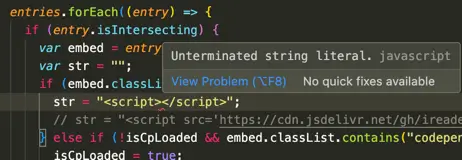
<p>Immediately I was notified by the code editor that there was an issue with this string.</p>

<figure class="figure-centered">
  <img class="shadow" loading="lazy" src="/images/errors/unterminated-string-literal-error-in-editor.webp" alt="Unterminated string literal error" />
  <figcaption>Unterminated string literal error</figcaption>
</figure>

<p>Since I’ve ensured that the string was closed by the double quote, I was confused a bit, to say the least.</p>

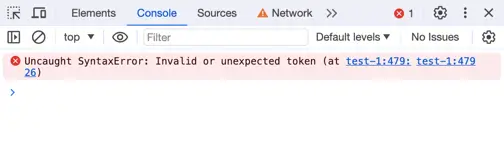
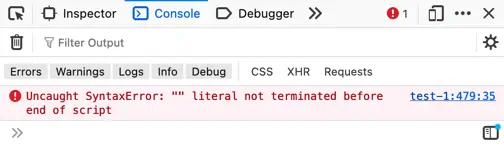
<p>I’ve tried both single and double quotes. But the error was still there, and the console was saying the same. However, Firefox was more precise.</p>

<style>
.image-grid{display:flex;justify-content:space-evenly;flex-wrap:wrap;margin:30px 0}
.image-grid figcaption{font-size:13px;color:#666;font-style:italic;text-align:center}
.image-grid figure{margin:0 10px 30px;flex:0 0 47%}
.vertical{width:60%}
</style>

<div class="image-grid">
  <figure>
    <img class="shadow" loading="lazy" src="/images/errors/unterminated-string-literal-error-in-chrome.webp" alt="Unterminated string literal error in Chrome" />
    <figcaption>Chrome console error</figcaption>
  </figure>
    <figure>
    <img class="shadow" loading="lazy" src="/images/errors/unterminated-string-literal-error-in-firefox.webp" alt="Unterminated string literal error in Firefox" />
    <figcaption>Firefox console error</figcaption>
  </figure>
</div>

<p>But after some investigation, I’ve <a href="https://stackoverflow.com/questions/236073/why-split-the-script-tag-when-writing-it-with-document-write#answer-236106" target="_blank">found out</a> that the <code class="language-plaintext highlighter-rouge">script</code> and <code class="language-plaintext highlighter-rouge">style</code> tags inside a string should be treated like HTML, hence the error.</p>

<p>There are a few ways to fix that.</p>

<ol>
  <li><strong>Escape the closing tag slash:</strong>
    <div class="language-javascript highlighter-rouge"><div class="highlight"><pre class="highlight"><code><span class="kd">var</span> <span class="nx">str</span> <span class="o">=</span> <span class="dl">"</span><span class="s2">&lt;script&gt;&lt;</span><span class="se">\</span><span class="s2">/script&gt;</span><span class="dl">"</span><span class="p">;</span>
</code></pre></div>    </div>
  </li>
  <li><strong>Split the string:</strong>
    <div class="language-javascript highlighter-rouge"><div class="highlight"><pre class="highlight"><code><span class="kd">var</span> <span class="nx">str</span> <span class="o">=</span> <span class="dl">"</span><span class="s2">&lt;script&gt;</span><span class="dl">"</span> <span class="o">+</span> <span class="dl">"</span><span class="s2">&lt;/script&gt;</span><span class="dl">"</span><span class="p">;</span>
</code></pre></div>    </div>
  </li>
  <li><strong>Use template literals:</strong>
    <div class="language-javascript highlighter-rouge"><div class="highlight"><pre class="highlight"><code><span class="kd">var</span> <span class="nx">str</span> <span class="o">=</span> <span class="s2">`&lt;script&gt;&lt;/script&gt;`</span><span class="p">;</span>
</code></pre></div>    </div>
  </li>
</ol>]]></content><author><name></name></author><category term="javascript" /><summary type="html"><![CDATA[I recently encountered an `Unterminated string literal` error, which turned out to be totally unexpected for me, as the string looked completely fine for me.]]></summary></entry><entry><title type="html">How to place cursor at the end of the text field with JavaScript</title><link href="https://nikitahl.com/cursor-at-the-end-of-text-field" rel="alternate" type="text/html" title="How to place cursor at the end of the text field with JavaScript" /><published>2024-02-16T08:40:17+00:00</published><updated>2024-02-16T08:40:17+00:00</updated><id>https://nikitahl.com/caret-position-javascript</id><content type="html" xml:base="https://nikitahl.com/cursor-at-the-end-of-text-field"><![CDATA[<p>It’s a good idea to place the cursor at the end of the text field when it gains focus, especially if the field already contains a value.</p>

<p>I’m referring to both <code class="language-plaintext highlighter-rouge">input</code> elements (which can hold text values) and <code class="language-plaintext highlighter-rouge">textarea</code> elements.</p>

<p>However, the <code class="language-plaintext highlighter-rouge">focus()</code> method alone doesn’t achieve this. Since there are no native solutions to set the cursor position, we can employ a small JavaScript trick.</p>

<p>Let’s assume we have the following search <code class="language-plaintext highlighter-rouge">input</code> element, which already contains a value:</p>

<div class="language-html highlighter-rouge"><div class="highlight"><pre class="highlight"><code><span class="nt">&lt;input</span> <span class="na">id=</span><span class="s">"search-field"</span> <span class="na">type=</span><span class="s">"search"</span> <span class="na">value=</span><span class="s">"How to"</span><span class="nt">&gt;</span>
</code></pre></div></div>

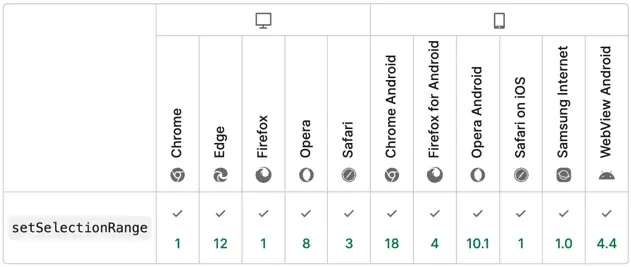
<p>Next we’ll need to use the <a href="https://developer.mozilla.org/en-US/docs/Web/API/HTMLInputElement/setSelectionRange" target="_blank"><code class="language-plaintext highlighter-rouge">setSelectionRange</code></a> method to set the cursor position.</p>

<p>The <code class="language-plaintext highlighter-rouge">setSelectionRange</code> method accepts two parameters:</p>

<ul>
  <li><code class="language-plaintext highlighter-rouge">selectionStart</code> - a zero-based index of the first selected character</li>
  <li><code class="language-plaintext highlighter-rouge">selectionEnd</code> - a zero-based index of the character after the last selected character</li>
</ul>

<p>Although this method is intended for text selection, we can use it to set the cursor position by specifying the same start and end position of the selection. Which both will be equal to the last character index.</p>

<div class="language-javascript highlighter-rouge"><div class="highlight"><pre class="highlight"><code><span class="kd">const</span> <span class="nx">searchInput</span> <span class="o">=</span>  <span class="nb">document</span><span class="p">.</span><span class="nx">getElementById</span><span class="p">(</span><span class="dl">'</span><span class="s1">search-field</span><span class="dl">'</span><span class="p">)</span>

<span class="c1">// start and end position of the cursor</span>
<span class="kd">const</span> <span class="nx">pos</span> <span class="o">=</span> <span class="nx">searchInput</span><span class="p">.</span><span class="nx">value</span><span class="p">.</span><span class="nx">length</span>

<span class="nx">searchInput</span><span class="p">.</span><span class="nx">setSelectionRange</span><span class="p">(</span><span class="nx">pos</span><span class="p">,</span> <span class="nx">pos</span><span class="p">)</span>
<span class="nx">searchInput</span><span class="p">.</span><span class="nx">focus</span><span class="p">()</span>
</code></pre></div></div>
<p class="note">💡 NOTE: The <code>setSelectionRange</code> method will work the same for the <code>input</code> and <code>textarea</code> elements.</p>

<figure class="figure-centered">
  <a href="https://developer.mozilla.org/en-US/docs/Web/API/HTMLInputElement/setSelectionRange#browser_compatibility" target="_blank" rel="noopener">
    <img class="shadow" loading="lazy" src="/images/browser-support/setselectionrange-browser-support.webp" alt="setSelectionRange Browser compatibility" />
  </a>
  <figcaption>Browser compatibility</figcaption>
</figure>]]></content><author><name></name></author><category term="javascript" /><summary type="html"><![CDATA[It’s a good idea to place the cursor at the end of the text field when it gains focus, especially if the field already contains a value.]]></summary></entry><entry><title type="html">Syncing custom TinyMCE and Quicktags editors for instant update</title><link href="https://nikitahl.com/sync-tinymce-and-quicktags-editors" rel="alternate" type="text/html" title="Syncing custom TinyMCE and Quicktags editors for instant update" /><published>2024-01-19T09:03:24+00:00</published><updated>2024-01-19T09:03:24+00:00</updated><id>https://nikitahl.com/sync-tinymce-and-quicktags-editors</id><content type="html" xml:base="https://nikitahl.com/sync-tinymce-and-quicktags-editors"><![CDATA[<p>When implementing an instant update preview area with the WordPress Classic Editor, an appearance issue arises when working in different modes. This problem, its causes, and the solution are explained below.</p>

<ol>
  <li><a href="#problem">Problem</a></li>
  <li><a href="#how-it-works-in-wordpress">How it works in WordPress</a></li>
  <li><a href="#solution">Solution</a></li>
</ol>

<h2 id="problem">Problem</h2>

<p>When utilizing the <a href="https://wordpress.org/documentation/article/write-posts-classic-editor/" target="_blank">WordPress Classic Editor</a> for implementing an instant update of a specific preview area, the content renders differently based on the editing mode.</p>

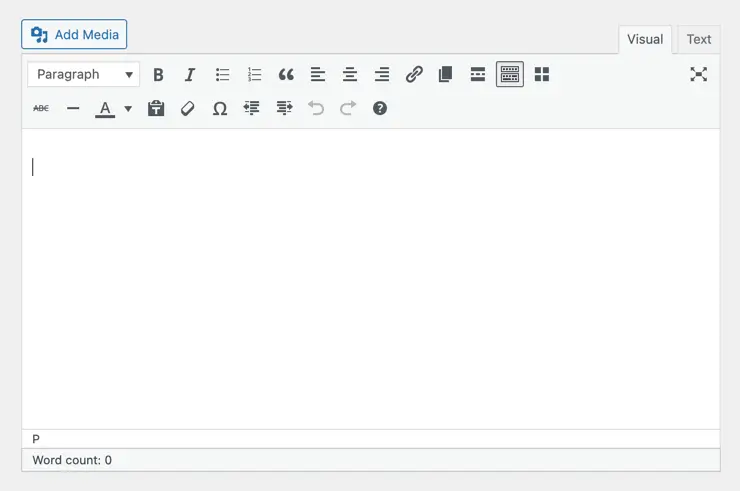
<p>This discrepancy arises because the Classic Editor in WordPress has two modes, each with a separate text editor:</p>

<ol>
  <li><strong>Visual</strong> mode uses the <strong>TinyMCE</strong> editor</li>
  <li><strong>Text</strong> mode uses the <strong>Quicktags</strong> editor</li>
</ol>

<figure class="figure-centered">
  <img class="shadow" loading="lazy" src="/images/wordpress/wordpress-classic-editor.webp" alt="WordPress Classic Editor" />
  <figcaption>WordPress Classic Editor</figcaption>
</figure>

<p><a href="https://codex.wordpress.org/TinyMCE" target="_blank">TinyMCE</a> is a WYSIWYG editor that produces ready-to-use HTML code, while the <a href="https://developer.wordpress.org/apis/quicktags/" target="_blank">Quicktags editor</a> is a simple text editor allowing users to manually insert HTML tags.</p>

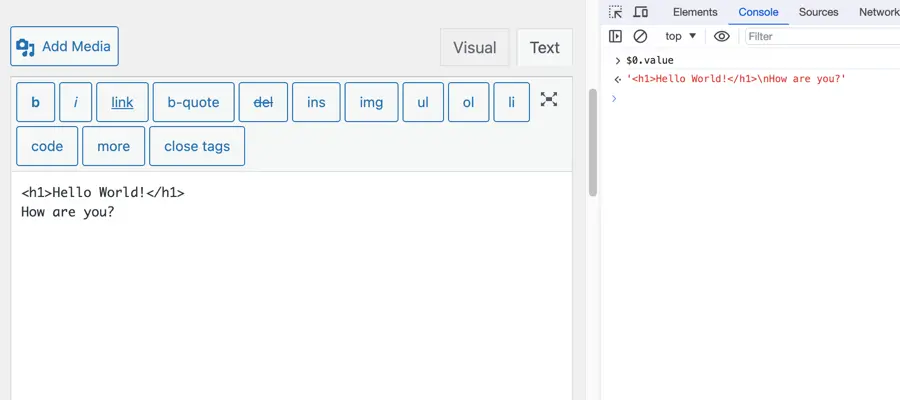
<p class="note">💡 NOTE: As of time of writing this article the WordPress was using a version 4.9.11 of TinyMCE editor.</p>

<p>On the other hand the <a href="https://developer.wordpress.org/apis/quicktags/" target="_blank">Quicktags editor</a> is a simple Text editor, which allows users to insert HTML tags manually.</p>

<p>The issue occurs when switching between modes, leading to potential stripping of changes, such as tags, from the Quicktags editor. This can result in undesired outcomes when instantly outputting content to a designated area, as the HTML differs.</p>

<p>Notably, this is visible for text content, displayed as paragraphs in Visual mode and as regular text in Text mode.</p>

<style>
.image-grid{display:flex;justify-content:space-evenly;flex-wrap:wrap;margin:30px 0}
.image-grid figcaption{font-size:13px;color:#666;font-style:italic;text-align:center}
.image-grid figure{margin:0 10px 10px;flex:1 0 47%}
</style>

<div class="image-grid">
  <figure>
    <img class="shadow" loading="lazy" src="/images/wordpress/wordpress-classic-editor-visual-mode-value.webp" alt="WordPress Classic Editor Visual mode" />
    <figcaption>Visual mode</figcaption>
  </figure>
  <figure>
    <img class="shadow" loading="lazy" src="/images/wordpress/wordpress-classic-editor-text-mode-value.webp" alt="WordPress Classic Editor Text mode" />
    <figcaption>Text mode</figcaption>
  </figure>
</div>

<h2 id="how-it-works-in-wordpress">How it works in WordPress</h2>

<p>In the WordPress View page, there is no visible difference; the output text appears exactly as it does in the TinyMCE (Visual mode), even if edited in the Quicktags editor (Text mode).</p>

<p>This consistency is achieved through the application of the <a href="https://developer.wordpress.org/reference/functions/wpautop/" target="_blank"><code class="language-plaintext highlighter-rouge">wpautop</code></a> function, which wraps text inside a <code class="language-plaintext highlighter-rouge">p</code> element after saving or publishing a post.</p>

<h2 id="solution">Solution</h2>

<p>When creating a custom text editor in WordPress, such as in a plugin, and aiming to mimic its logic, synchronization of values in both editor modes is necessary.</p>

<p>Assuming the Classic Editor is initialized with both modes, here’s how to sync the values:</p>

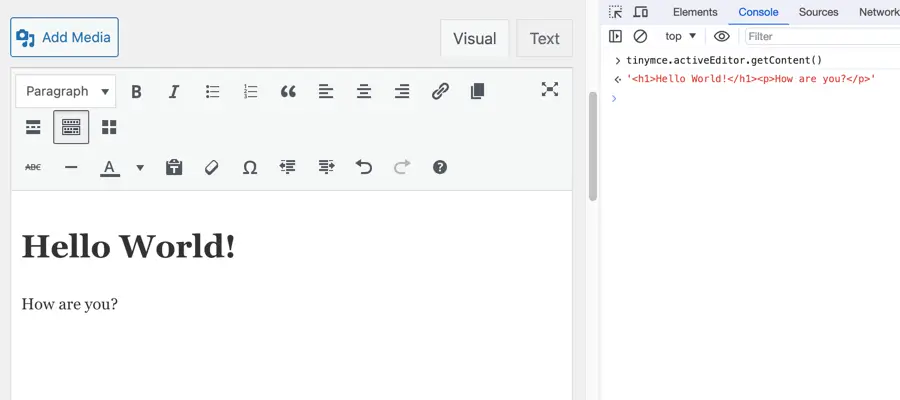
<p>You can store the value of the editor in a variable, since the TinyMCE is the default one, you can get its value and store as a default:</p>

<div class="language-javascript highlighter-rouge"><div class="highlight"><pre class="highlight"><code><span class="kd">let</span> <span class="nx">editorValue</span> <span class="o">=</span> <span class="nb">window</span><span class="p">.</span><span class="nx">tinymce</span><span class="p">.</span><span class="nx">activeEditor</span><span class="p">.</span><span class="nx">getContent</span><span class="p">()</span>
</code></pre></div></div>

<p>The <code class="language-plaintext highlighter-rouge">editorValue</code> variable will hold the editor value, which you can use to insert in a live preview area. E.g.:</p>

<div class="language-javascript highlighter-rouge"><div class="highlight"><pre class="highlight"><code><span class="kd">const</span> <span class="nx">preview</span> <span class="o">=</span> <span class="nb">document</span><span class="p">.</span><span class="nx">getElementById</span><span class="p">(</span><span class="dl">'</span><span class="s1">preview</span><span class="dl">'</span><span class="p">)</span>

<span class="nx">preview</span><span class="p">.</span><span class="nx">innerHTML</span> <span class="o">=</span> <span class="nx">editorValue</span>
</code></pre></div></div>

<p>The TinyMCE will have its own change handler function which you can <a href="https://www.tiny.cloud/docs-4x/configure/integration-and-setup/#setup" target="_blank">specify</a> when initializing. Inside the change handler function you should write the TinyMCE editor’s value to the <code class="language-plaintext highlighter-rouge">editorValue</code> variable.</p>

<div class="language-javascript highlighter-rouge"><div class="highlight"><pre class="highlight"><code><span class="kd">const</span> <span class="nx">id</span> <span class="o">=</span> <span class="dl">'</span><span class="s1">editor</span><span class="dl">'</span>
<span class="kd">let</span> <span class="nx">editorValue</span> <span class="o">=</span> <span class="nb">window</span><span class="p">.</span><span class="nx">tinymce</span><span class="p">.</span><span class="nx">activeEditor</span><span class="p">.</span><span class="nx">getContent</span><span class="p">()</span>

<span class="nb">window</span><span class="p">.</span><span class="nx">tinymce</span><span class="p">.</span><span class="nx">init</span><span class="p">({</span>
  <span class="na">id</span><span class="p">:</span> <span class="nx">id</span><span class="p">,</span>
  <span class="na">selector</span><span class="p">:</span> <span class="dl">'</span><span class="s1">#</span><span class="dl">'</span> <span class="o">+</span> <span class="nx">id</span><span class="p">,</span>
  <span class="na">setup</span><span class="p">:</span> <span class="kd">function</span><span class="p">(</span><span class="nx">editor</span><span class="p">)</span> <span class="p">{</span>
    <span class="nx">editor</span><span class="p">.</span><span class="nx">on</span><span class="p">(</span><span class="dl">'</span><span class="s1">keyup change undo redo</span><span class="dl">'</span><span class="p">,</span> <span class="p">(</span><span class="nx">e</span><span class="p">)</span> <span class="o">=&gt;</span> <span class="p">{</span>
      <span class="nx">editorValue</span> <span class="o">=</span> <span class="nx">editor</span><span class="p">.</span><span class="nx">getContent</span><span class="p">()</span>
    <span class="p">})</span>
  <span class="p">}</span>
<span class="p">})</span>
</code></pre></div></div>

<p>For the Quicktags editor, we need to add an <code class="language-plaintext highlighter-rouge">eventListener</code>, and run the value of the <code class="language-plaintext highlighter-rouge">textarea</code> through the <code class="language-plaintext highlighter-rouge">wpautop</code> function.</p>

<p>Since WordPress has only a PHP version of the <code class="language-plaintext highlighter-rouge">wpautop</code> function, we can use a <a href="https://github.com/andymantell/node-wpautop" target="_blank">JavaScript version</a> of the this funciton.</p>

<p>You can <a href="https://www.npmjs.com/package/wpautop" target="_blank">install it as an npm package</a> or copy paste it from <a href="https://github.com/andymantell/node-wpautop/blob/master/lib/wpautop.js" target="_blank">GitHub</a>.</p>

<div class="language-javascript highlighter-rouge"><div class="highlight"><pre class="highlight"><code><span class="k">import</span> <span class="nx">wpautop</span> <span class="k">from</span> <span class="dl">'</span><span class="s1">wpautop</span><span class="dl">'</span>

<span class="kd">const</span> <span class="nx">id</span> <span class="o">=</span> <span class="dl">'</span><span class="s1">editor</span><span class="dl">'</span>
<span class="kd">let</span> <span class="nx">editorValue</span> <span class="o">=</span> <span class="nb">window</span><span class="p">.</span><span class="nx">tinymce</span><span class="p">.</span><span class="nx">activeEditor</span><span class="p">.</span><span class="nx">getContent</span><span class="p">()</span>

<span class="nb">window</span><span class="p">.</span><span class="nx">QTags</span><span class="p">.</span><span class="nx">instances</span><span class="p">[</span><span class="nx">id</span><span class="p">].</span><span class="nx">canvas</span><span class="p">.</span><span class="nx">addEventListener</span><span class="p">(</span><span class="dl">'</span><span class="s1">keyup</span><span class="dl">'</span><span class="p">,</span> <span class="p">(</span><span class="nx">e</span><span class="p">)</span> <span class="o">=&gt;</span> <span class="p">{</span>
  <span class="kd">const</span> <span class="nx">formattedValue</span> <span class="o">=</span> <span class="nx">wpautop</span><span class="p">(</span><span class="nx">e</span><span class="p">.</span><span class="nx">target</span><span class="p">.</span><span class="nx">value</span><span class="p">)</span>
  <span class="nx">editorValue</span> <span class="o">=</span> <span class="nx">formattedValue</span>
<span class="p">})</span>
</code></pre></div></div>

<p>Now, the content value is stored in one place, ensuring consistency between the editor modes. This prevents visual artifacts and glitches when working in both modes.</p>]]></content><author><name></name></author><category term="javascript" /><category term="wordpress" /><summary type="html"><![CDATA[A guide on how to syncing a TinyMCE and a Quicktags editors in WordPress for an instant update]]></summary></entry><entry><title type="html">MySQL query for an id column with an AUTO_INCREMENT field</title><link href="https://nikitahl.com/sql-query-for-auto-increment-field" rel="alternate" type="text/html" title="MySQL query for an id column with an AUTO_INCREMENT field" /><published>2024-01-07T12:00:24+00:00</published><updated>2024-01-07T12:00:24+00:00</updated><id>https://nikitahl.com/sql-query-for-auto-increment-field</id><content type="html" xml:base="https://nikitahl.com/sql-query-for-auto-increment-field"><![CDATA[<p>While working on a project for a “Make a Spotify Clone from Scratch: JavaScript PHP and MySQL” course that I’m learning, I encountered an issue with making a query to the database.</p>

<p>The task was to set user-provided data like username, name, email, etc. into the database table. But the query provided in the course didn’t work for me.</p>

<p>I’ve struggled a bit but managed to find a solution.</p>

<p><strong>My setup:</strong></p>

<ol>
  <li>MAMP version 6.8</li>
  <li>PHP version 7.4.33</li>
  <li>mySQL version 5.7.39</li>
</ol>

<p><strong>What I had:</strong></p>

<ol>
  <li>The database was set via the phpMyAdmin tool.</li>
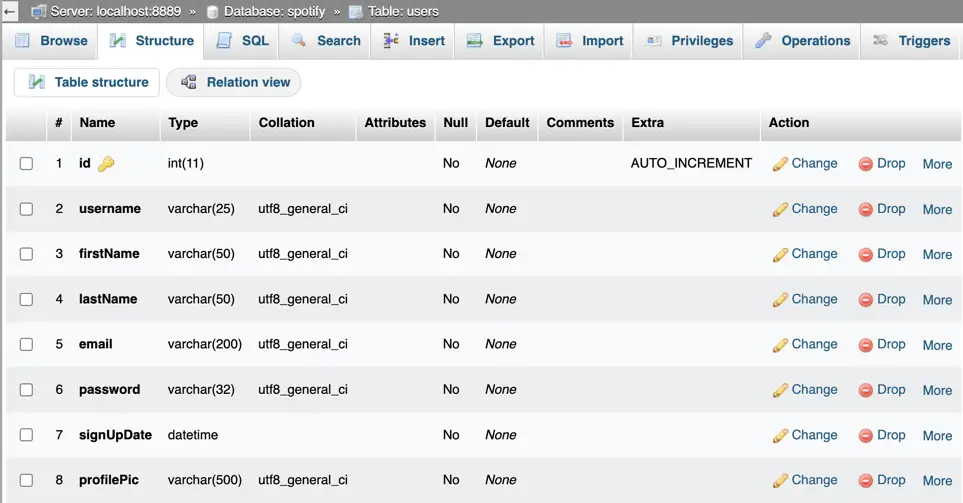
  <li>There were 8 columns in the database’s <code class="language-plaintext highlighter-rouge">users</code> table.</li>
  <li>The first column is <code class="language-plaintext highlighter-rouge">id</code> with a type of <code class="language-plaintext highlighter-rouge">INT</code> and has an <code class="language-plaintext highlighter-rouge">AUTO_INCREMENT</code> without any initial value.</li>
</ol>

<figure class="figure-centered">
  <img class="shadow" loading="lazy" src="/images/misc/users-table.webp" alt="Example of users table" />
  <figcaption>Example of users table</figcaption>
</figure>

<p><strong>Suggested query:</strong></p>

<p>So when I used the provided query it didn’t work for me. The first parameter in the parenthesis is supposed to represent an <code class="language-plaintext highlighter-rouge">id</code> column.</p>

<div class="language-php highlighter-rouge"><div class="highlight"><pre class="highlight"><code><span class="nf">mysqli_query</span><span class="p">(</span><span class="nv">$this</span><span class="o">-&gt;</span><span class="n">con</span><span class="p">,</span> <span class="s2">"INSERT INTO users VALUES ('', '</span><span class="nv">$un</span><span class="s2">', '</span><span class="nv">$fn</span><span class="s2">', '</span><span class="nv">$ln</span><span class="s2">', '</span><span class="nv">$em</span><span class="s2">', '</span><span class="nv">$encryptedPw</span><span class="s2">', '</span><span class="nv">$date</span><span class="s2">', '</span><span class="nv">$profilePic</span><span class="s2">')"</span><span class="p">);</span>
</code></pre></div></div>

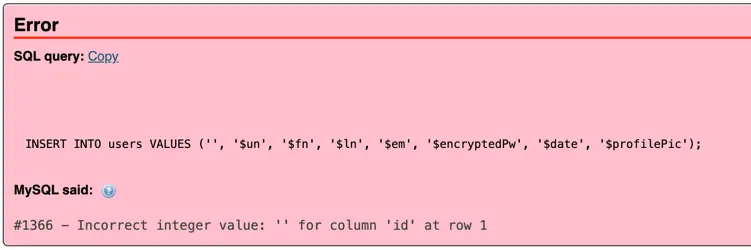
<p>This query returned <code class="language-plaintext highlighter-rouge">false</code>. And after debugging as suggested in the course, I received the following error for the given query:</p>

<blockquote>
  <p><code class="language-plaintext highlighter-rouge">#1366 - Incorrect integer value: '' for column 'id' at row 1</code></p>
</blockquote>

<figure class="figure-centered">
  <img class="shadow" loading="lazy" src="/images/misc/mysql-type-error.webp" alt="MySQL type error" />
  <figcaption>MySQL type error</figcaption>
</figure>

<p>So it means that the provided value type was wrong for the <code class="language-plaintext highlighter-rouge">id</code> column.</p>

<p><strong>Solution:</strong></p>

<p>After some of research I’ve found out that for the <code class="language-plaintext highlighter-rouge">AUTO_INCREMENT</code> columns, you <a href="(https://www.w3schools.com/mysql/mysql_autoincrement.asp){:target=&quot;_blank&quot;}">can skip this parameter</a> in the query.</p>

<p>So, you would set all columns except the first one (the <code class="language-plaintext highlighter-rouge">id</code>), and the final query would look like this:</p>

<div class="language-php highlighter-rouge"><div class="highlight"><pre class="highlight"><code><span class="nf">mysqli_query</span><span class="p">(</span><span class="nv">$this</span><span class="o">-&gt;</span><span class="n">con</span><span class="p">,</span> <span class="s2">"INSERT INTO users (username, firstName, lastName, email, password, signUpDate, profilePic) VALUES ('</span><span class="nv">$un</span><span class="s2">', '</span><span class="nv">$fn</span><span class="s2">', '</span><span class="nv">$ln</span><span class="s2">', '</span><span class="nv">$em</span><span class="s2">', '</span><span class="nv">$encryptedPw</span><span class="s2">', '</span><span class="nv">$date</span><span class="s2">', '</span><span class="nv">$profilePic</span><span class="s2">')"</span><span class="p">);</span>
</code></pre></div></div>]]></content><author><name></name></author><category term="mysql" /><category term="php" /><summary type="html"><![CDATA[A fix for a MySQL query with an AUTO_INCREMENT field]]></summary></entry><entry><title type="html">A simple way to add an outline to text with pure CSS</title><link href="https://nikitahl.com/outline-text-with-css" rel="alternate" type="text/html" title="A simple way to add an outline to text with pure CSS" /><published>2023-12-20T20:08:02+00:00</published><updated>2023-12-20T20:08:02+00:00</updated><id>https://nikitahl.com/outline-text-with-css</id><content type="html" xml:base="https://nikitahl.com/outline-text-with-css"><![CDATA[<p>Adding a cool outline effect to your text is quite simple with just a few lines of CSS.</p>

<p>Previously, you needed to use hacks, such as adding several <code class="language-plaintext highlighter-rouge">box-shadow</code> properties, to achieve such a result.</p>

<p>But with modern CSS to add an outline effect you’ll need to use only three CSS properties <code class="language-plaintext highlighter-rouge">-webkit-text-fill-color</code>, <code class="language-plaintext highlighter-rouge">-webkit-text-stroke-width</code> and <code class="language-plaintext highlighter-rouge">-webkit-text-stroke-color</code>.</p>

<div class="language-css highlighter-rouge"><div class="highlight"><pre class="highlight"><code><span class="nc">.outline-text</span> <span class="p">{</span>
  <span class="nl">-webkit-text-fill-color</span><span class="p">:</span> <span class="m">#fff</span><span class="p">;</span>
  <span class="nl">-webkit-text-stroke-width</span><span class="p">:</span> <span class="m">1px</span><span class="p">;</span>
  <span class="nl">-webkit-text-stroke-color</span><span class="p">:</span> <span class="m">#262626</span><span class="p">;</span>
<span class="p">}</span>
</code></pre></div></div>

<p><strong>Result:</strong></p>

<style>
  .outline-text {
    -webkit-text-fill-color: #fff;
    -webkit-text-stroke-width: 1px;
    -webkit-text-stroke-color: #262626;
    font-size:3.5em;
    font-family: Helvetica, sans-serif;
    line-height: 1.2;

    transition: -webkit-text-stroke-color .2s ease-in-out;
  }
  .outline-text-hover:hover {
    -webkit-text-stroke-color: #f00;
  }
</style>

<p><strong class="outline-text">Outline Text</strong></p>

<p>These properties are pretty self-explanatory:</p>

<ul>
  <li><a href="https://developer.mozilla.org/en-US/docs/Web/CSS/-webkit-text-fill-color" target="_blank"><code class="language-plaintext highlighter-rouge">-webkit-text-fill-color</code></a> - adds a fill color for the text</li>
  <li><a href="https://developer.mozilla.org/en-US/docs/Web/CSS/-webkit-text-stroke-color" target="_blank"><code class="language-plaintext highlighter-rouge">-webkit-text-stroke-color</code></a> - specifies the outline color of the text</li>
  <li><a href="https://developer.mozilla.org/en-US/docs/Web/CSS/-webkit-text-stroke-width" target="_blank"><code class="language-plaintext highlighter-rouge">-webkit-text-stroke-width</code></a> - specifies the outline width of the text</li>
</ul>

<h2 id="hover-effect">Hover effect</h2>

<p>They also work well with CSS transitions, so you can apply one on hover effect.</p>

<div class="language-css highlighter-rouge"><div class="highlight"><pre class="highlight"><code>  <span class="nc">.outline-text</span> <span class="p">{</span>
    <span class="nl">-webkit-text-fill-color</span><span class="p">:</span> <span class="m">#fff</span><span class="p">;</span>
    <span class="nl">-webkit-text-stroke-width</span><span class="p">:</span> <span class="m">1px</span><span class="p">;</span>
    <span class="nl">-webkit-text-stroke-color</span><span class="p">:</span> <span class="m">#262626</span><span class="p">;</span>

    <span class="nl">transition</span><span class="p">:</span> <span class="n">-webkit-text-stroke-color</span> <span class="m">.2s</span> <span class="n">ease-in-out</span><span class="p">;</span>
  <span class="p">}</span>

  <span class="nc">.outline-text</span><span class="nd">:hover</span> <span class="p">{</span>
    <span class="nl">-webkit-text-stroke-color</span><span class="p">:</span> <span class="m">#f00</span><span class="p">;</span>
  <span class="p">}</span>
</code></pre></div></div>
<p><strong>Result:</strong></p>

<p><strong class="outline-text outline-text-hover">Outline Text with Hover Effect</strong></p>

<h2 id="browser-support">Browser support</h2>

<p>These three properties are fully supported by all modern browsers.</p>

<p class="ciu_embed" data-feature="mdn-css__properties__-webkit-text-fill-color" data-periods="future_1,current,past_1" data-accessible-colours="false">
Data on support for the <a href="https://caniuse.com/text-stroke" target="_blank">-webkit-text-fill-color</a> feature across the major browsers
</p>

<p class="ciu_embed" data-feature="mdn-css__properties__-webkit-text-stroke-color" data-periods="future_1,current,past_1" data-accessible-colours="false">
Data on support for the <a href="https://caniuse.com/text-stroke" target="_blank">-webkit-text-stroke-color</a> feature across the major browsers
</p>

<p class="ciu_embed" data-feature="mdn-css__properties__-webkit-text-stroke-width" data-periods="future_1,current,past_1" data-accessible-colours="false">
Data on support for the <a href="https://caniuse.com/text-stroke" target="_blank">-webkit-text-stroke-width</a> feature across the major browsers
</p>]]></content><author><name></name></author><category term="css" /><summary type="html"><![CDATA[Adding a cool outline effect to your text is quite simple with just a few lines of CSS.]]></summary></entry><entry><title type="html">How to change 2FA authentication app (TOTP) in GitHub</title><link href="https://nikitahl.com/how-to-change-2fa-app-in-github" rel="alternate" type="text/html" title="How to change 2FA authentication app (TOTP) in GitHub" /><published>2023-12-01T12:40:02+00:00</published><updated>2023-12-01T12:40:02+00:00</updated><id>https://nikitahl.com/how-to-change-2fa-app-in-github</id><content type="html" xml:base="https://nikitahl.com/how-to-change-2fa-app-in-github"><![CDATA[<p>I was a bit stuck and confused initially when I had to change the authenticator app on my phone and enable it on GitHub, luckily it was pretty easy.</p>

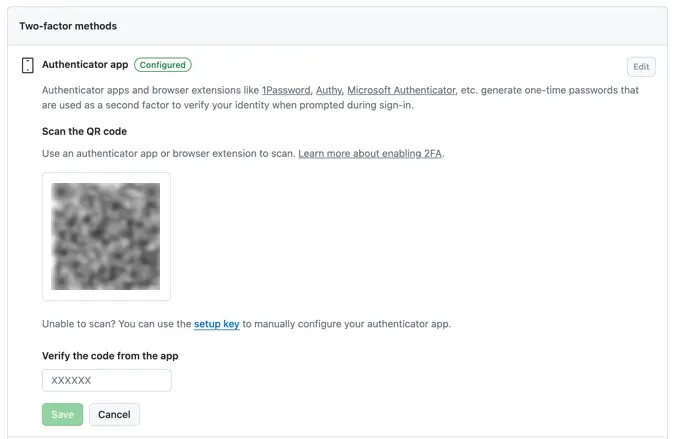
<p>Recently I changed the 2FA app on my phone, so I had to also enable it in the GitHub settings.</p>

<p>At first, I thought there would be a separate option to change the authenticator app. And I was looking for such an option under <strong>Two-factor authentication</strong> in <strong>Settings</strong>, but couldn’t find such.</p>

<p>Then I used the <strong>Edit</strong> option on the existing <strong>Two-factor method</strong> section under the <strong>Password and authentication</strong>.</p>

<figure class="figure-centered">
  <img class="shadow" loading="lazy" src="/images/misc/github-2fa-methods.webp" alt="GitHub settings 2fa methods" />
  <figcaption>GitHub settings 2fa methods</figcaption>
</figure>

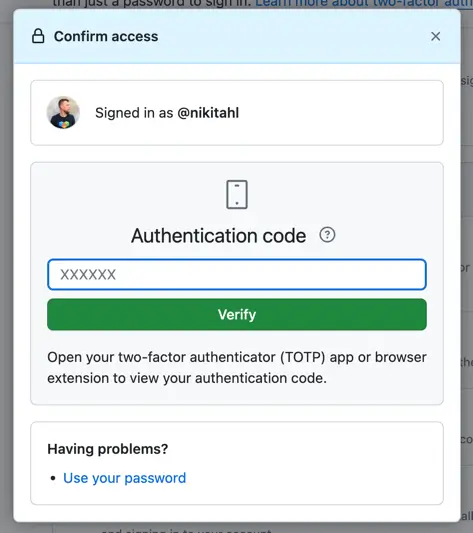
<p>Which prompted me to authenticate with my existing app.</p>

<figure class="figure-centered">
  <img class="shadow" loading="lazy" src="/images/misc/github-authenticate-dialog.webp" alt="GitHub authenticate dialog" />
  <figcaption>Authenticate dialog in GitHub </figcaption>
</figure>

<p>After I authenticated, I was able to generate a new QR code, and this time used my new authenticator app.</p>

<figure class="figure-centered">
  <img class="shadow" loading="lazy" src="/images/misc/github-authenticate-app.webp" alt="GitHub authenticate new app" />
  <figcaption>Authenticate new app in GitHub</figcaption>
</figure>

<p>Now I can use a new app that I’ve installed on my phone to authenticate into GitHub.</p>]]></content><author><name></name></author><category term="tools" /><category term="tips" /><summary type="html"><![CDATA[I was a bit stuck and confused initially when I had to change the authenticator app on my phone and enable it on GitHub, luckily it was pretty easy.]]></summary></entry><entry><title type="html">Creating stylish number input with custom buttons</title><link href="https://nikitahl.com/number-input-with-custom-buttons" rel="alternate" type="text/html" title="Creating stylish number input with custom buttons" /><published>2023-11-20T18:40:02+00:00</published><updated>2023-11-20T18:40:02+00:00</updated><id>https://nikitahl.com/number-input-with-custom-buttons</id><content type="html" xml:base="https://nikitahl.com/number-input-with-custom-buttons"><![CDATA[<p>By default, the appearance of the number input is not very user-friendly, particularly the arrows. In this article, I will demonstrate how you can customize it to make it more appealing and easier to use.</p>

<p><strong>Contents:</strong></p>
<ol>
  <li><a href="#hide-default-arrows">Hide default arrows</a></li>
  <li><a href="#add-custom-buttons">Add custom buttons</a></li>
  <li><a href="#styling-the-input">Styling the input</a></li>
  <li><a href="#demo">Demo</a></li>
</ol>

<h2 id="hide-default-arrows">Hide default arrows</h2>

<p>The default number input arrows are often considered suboptimal because of their unappealing design and limited usability, making them less intuitive and user-friendly for individuals interacting with the input field.</p>

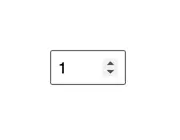
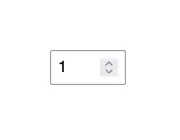
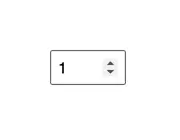
<p>Not to mention the lack of consistency accross different browsers. The arrows will appear on hover.</p>

<style>
.image-grid{display:flex;justify-content:space-evenly;flex-wrap:wrap;margin:0 0 30px}
.image-grid figcaption{font-size:13px;color:#666;font-style:italic;text-align:center}
.image-grid figure{margin:0 10px 30px;flex:1 0 47%}
.vertical{width:60%}
</style>

<div class="image-grid">
  <figure>
    <img class="shadow" loading="lazy" src="/images/html-elements/number-input-chrome.webp" alt="Number input on Chrome browser" />
    <figcaption>Number input on Chrome</figcaption>
  </figure>
  <figure>
    <img class="shadow" loading="lazy" src="/images/html-elements/number-input-firefox.webp" alt="Number input on Firefox browser" />
    <figcaption>Number input on Firefox</figcaption>
  </figure>
  <figure>
    <img class="shadow" loading="lazy" src="/images/html-elements/number-input-safari.webp" alt="Number input on Safari browser" />
    <figcaption>Number input on Safari</figcaption>
  </figure>
  <figure>
    <img class="shadow" loading="lazy" src="/images/html-elements/number-input-edge.webp" alt="Number input on Edge browser" />
    <figcaption>Number input on Edge</figcaption>
  </figure>
</div>

<p>To hide the default arrows, you’ll need to use the <a href="https://developer.mozilla.org/en-US/docs/Web/CSS/::-webkit-outer-spin-button" target="_blank"><code class="language-plaintext highlighter-rouge">::-webkit-outer-spin-button</code></a> and <a href="https://developer.mozilla.org/en-US/docs/Web/CSS/::-webkit-inner-spin-button" target="_blank"><code class="language-plaintext highlighter-rouge">::-webkit-inner-spin-button</code></a> pseuso-elements.</p>

<p>These will only work for the WebKit or Blink based browsers. To hide the arrows on Firefox, you’ll need to use the vendor prefixed <a href="https://developer.mozilla.org/en-US/docs/Web/CSS/appearance" target="_blank"><code class="language-plaintext highlighter-rouge">appearance</code></a> property with a value of <code class="language-plaintext highlighter-rouge">textfield</code> on the number input.</p>

<div class="language-css highlighter-rouge"><div class="highlight"><pre class="highlight"><code><span class="c">/* WebKit and Blink */</span>
<span class="nt">input</span><span class="nd">::-webkit-outer-spin-button</span><span class="o">,</span>
<span class="nt">input</span><span class="nd">::-webkit-inner-spin-button</span> <span class="p">{</span>
  <span class="nl">-webkit-appearance</span><span class="p">:</span> <span class="nb">none</span><span class="p">;</span>
  <span class="nl">margin</span><span class="p">:</span> <span class="m">0</span><span class="p">;</span>
<span class="p">}</span>

<span class="c">/* Firefox */</span>
<span class="nt">input</span><span class="o">[</span><span class="nt">type</span><span class="o">=</span><span class="s1">"number"</span><span class="o">]</span> <span class="p">{</span>
  <span class="nl">-moz-appearance</span><span class="p">:</span> <span class="n">textfield</span><span class="p">;</span>
<span class="p">}</span>
</code></pre></div></div>

<h2 id="add-custom-buttons">Add custom buttons</h2>

<p>Now that the default arrows are hidden, we can add buttons that will act as increment and decrement controls for the number input.</p>

<p>Usually, what you will see is the decrement button on the left side of the input and the increment button on the right side of the input. This is how I’m going to do it as well; however, you can position the buttons any way you like.</p>

<div class="language-html highlighter-rouge"><div class="highlight"><pre class="highlight"><code><span class="nt">&lt;button</span>
  <span class="na">class=</span><span class="s">"value-control"</span>
  <span class="na">onclick=</span><span class="s">"numberInput.stepDown()"</span>
  <span class="na">title=</span><span class="s">"Decrease value"</span>
  <span class="na">aria-label=</span><span class="s">"Decrease value"</span><span class="nt">&gt;</span>-<span class="nt">&lt;/button&gt;</span>

<span class="nt">&lt;input</span>
  <span class="na">class=</span><span class="s">"value-input"</span>
  <span class="na">type=</span><span class="s">"number"</span>
  <span class="na">value=</span><span class="s">"1"</span>
  <span class="na">name=</span><span class="s">"numberInput"</span>
  <span class="na">id=</span><span class="s">"numberInput"</span><span class="nt">&gt;</span>

<span class="nt">&lt;button</span>
  <span class="na">class=</span><span class="s">"value-control"</span>
  <span class="na">onclick=</span><span class="s">"numberInput.stepUp()"</span>
  <span class="na">title=</span><span class="s">"Increase value"</span>
  <span class="na">aria-label=</span><span class="s">"Increase value"</span><span class="nt">&gt;</span>+<span class="nt">&lt;/button&gt;</span>
</code></pre></div></div>

<p><strong>Explanation:</strong></p>

<p>For each button, we will include a <code class="language-plaintext highlighter-rouge">title</code> attribute to signify the action of the button. Additionally, we will add an <code class="language-plaintext highlighter-rouge">aria-label</code> attribute to enhance accessibility for assistive technologies.</p>

<p>The decrease button will feature a “-“ symbol, while the increase button will showcase a “+” symbol.</p>

<p>Finally, the buttons will have an <code class="language-plaintext highlighter-rouge">onclick</code> attribute that will modify the number input value. This attribute will reference the <code class="language-plaintext highlighter-rouge">id</code> attribute of the number input, which is available in the global scope, along with a corresponding method to either increase (<code class="language-plaintext highlighter-rouge">stepUp()</code>) or decrease (<code class="language-plaintext highlighter-rouge">stepDown()</code>) the value.</p>

<h2 id="styling-the-input">Styling the input</h2>

<p>Finally, let’s add some styles to the buttons and input.</p>

<p>I’ll define CSS variables to maintain consistency in properties such as <code class="language-plaintext highlighter-rouge">border</code>, <code class="language-plaintext highlighter-rouge">border-radius</code>, <code class="language-plaintext highlighter-rouge">height</code> and <code class="language-plaintext highlighter-rouge">font-size</code>.</p>

<p>In the end, I’ll apply pseudo-classes (<code class="language-plaintext highlighter-rouge">focus</code>, <code class="language-plaintext highlighter-rouge">hover</code> and <code class="language-plaintext highlighter-rouge">active</code>) for an improved UI and enhanced accessibility.</p>

<div class="language-css highlighter-rouge"><div class="highlight"><pre class="highlight"><code><span class="nd">:root</span> <span class="p">{</span>
  <span class="py">--border-radius</span><span class="p">:</span> <span class="m">3px</span><span class="p">;</span>
  <span class="py">--border</span><span class="p">:</span> <span class="m">2px</span> <span class="nb">solid</span> <span class="m">#3b3b3b</span><span class="p">;</span>
  <span class="py">--control-size</span><span class="p">:</span> <span class="m">38px</span><span class="p">;</span>
  <span class="py">--font-size</span><span class="p">:</span> <span class="m">20px</span><span class="p">;</span>
<span class="p">}</span>

<span class="nc">.value-control</span> <span class="p">{</span>
  <span class="nl">width</span><span class="p">:</span> <span class="n">var</span><span class="p">(</span><span class="n">--control-size</span><span class="p">);</span>
  <span class="nl">height</span><span class="p">:</span> <span class="n">var</span><span class="p">(</span><span class="n">--control-size</span><span class="p">);</span>
  <span class="nl">margin</span><span class="p">:</span> <span class="m">0</span> <span class="m">8px</span><span class="p">;</span>
  <span class="nl">background</span><span class="p">:</span> <span class="nb">transparent</span><span class="p">;</span>
  <span class="nl">border</span><span class="p">:</span> <span class="n">var</span><span class="p">(</span><span class="n">--border</span><span class="p">);</span>
  <span class="nl">border-radius</span><span class="p">:</span> <span class="n">var</span><span class="p">(</span><span class="n">--border-radius</span><span class="p">);</span>
  <span class="nl">color</span><span class="p">:</span> <span class="m">#3b3b3b</span><span class="p">;</span>
  <span class="nl">cursor</span><span class="p">:</span> <span class="nb">pointer</span><span class="p">;</span>
  <span class="nl">font-size</span><span class="p">:</span> <span class="n">var</span><span class="p">(</span><span class="n">--font-size</span><span class="p">);</span>
<span class="p">}</span>

<span class="nc">.value-control</span><span class="nd">:hover</span> <span class="p">{</span>
  <span class="nl">background</span><span class="p">:</span> <span class="m">#eee</span><span class="p">;</span>
<span class="p">}</span>

<span class="nc">.value-control</span><span class="nd">:active</span> <span class="p">{</span>
  <span class="nl">background</span><span class="p">:</span> <span class="m">#ddd</span><span class="p">;</span>
<span class="p">}</span>

<span class="nc">.value-control</span><span class="nd">:focus</span><span class="o">,</span>
<span class="nc">.value-input</span><span class="nd">:focus</span> <span class="p">{</span>
  <span class="nl">outline</span><span class="p">:</span> <span class="m">2px</span> <span class="nb">solid</span> <span class="m">#3e67fd</span><span class="p">;</span>
  <span class="nl">outline-offset</span><span class="p">:</span> <span class="m">1px</span>
<span class="p">}</span>

<span class="nc">.value-input</span> <span class="p">{</span>
  <span class="nl">margin</span><span class="p">:</span> <span class="m">0</span><span class="p">;</span>
  <span class="nl">height</span><span class="p">:</span> <span class="n">var</span><span class="p">(</span><span class="n">--control-size</span><span class="p">);</span>
  <span class="nl">width</span><span class="p">:</span> <span class="m">80px</span><span class="p">;</span>
  <span class="nl">border</span><span class="p">:</span> <span class="n">var</span><span class="p">(</span><span class="n">--border</span><span class="p">);</span>
  <span class="nl">border-radius</span><span class="p">:</span> <span class="n">var</span><span class="p">(</span><span class="n">--border-radius</span><span class="p">);</span>
  <span class="nl">padding</span><span class="p">:</span> <span class="m">2px</span> <span class="m">8px</span><span class="p">;</span>
  <span class="nl">text-align</span><span class="p">:</span> <span class="nb">center</span><span class="p">;</span>
  <span class="nl">font-size</span><span class="p">:</span> <span class="n">var</span><span class="p">(</span><span class="n">--font-size</span><span class="p">);</span>
<span class="p">}</span>

<span class="nc">.value-input</span><span class="nd">:hover</span> <span class="p">{</span>
  <span class="nl">border-color</span><span class="p">:</span> <span class="m">#777</span><span class="p">;</span>
<span class="p">}</span>
</code></pre></div></div>

<h2 id="demo">Demo</h2>

<p>The final result will be a more appealing presentation of the numeric value, offering an improved method for users to modify it either through the input itself or the more distinct and larger buttons.</p>

<p>You can find a full demo with a complete code examples on my CodePen:</p>

<p class="codepen" data-height="300" data-default-tab="result" data-slug-hash="bGzLYyL" data-user="nikitahl" style="height: 300px; box-sizing: border-box; display: flex; align-items: center; justify-content: center; border: 2px solid; margin: 1em 0; padding: 1em;">
  <span>See the Pen <a href="https://codepen.io/nikitahl/pen/bGzLYyL">
  Custom number input</a> by Nikita Hlopov (<a href="https://codepen.io/nikitahl">@nikitahl</a>)
  on <a href="https://codepen.io">CodePen</a>.</span>
</p>]]></content><author><name></name></author><category term="css" /><summary type="html"><![CDATA[By default, the appearance of the number input is not very user-friendly, particularly the arrows. In this article, I will demonstrate how you can customize it to make it more appealing and easier to use.]]></summary></entry></feed>