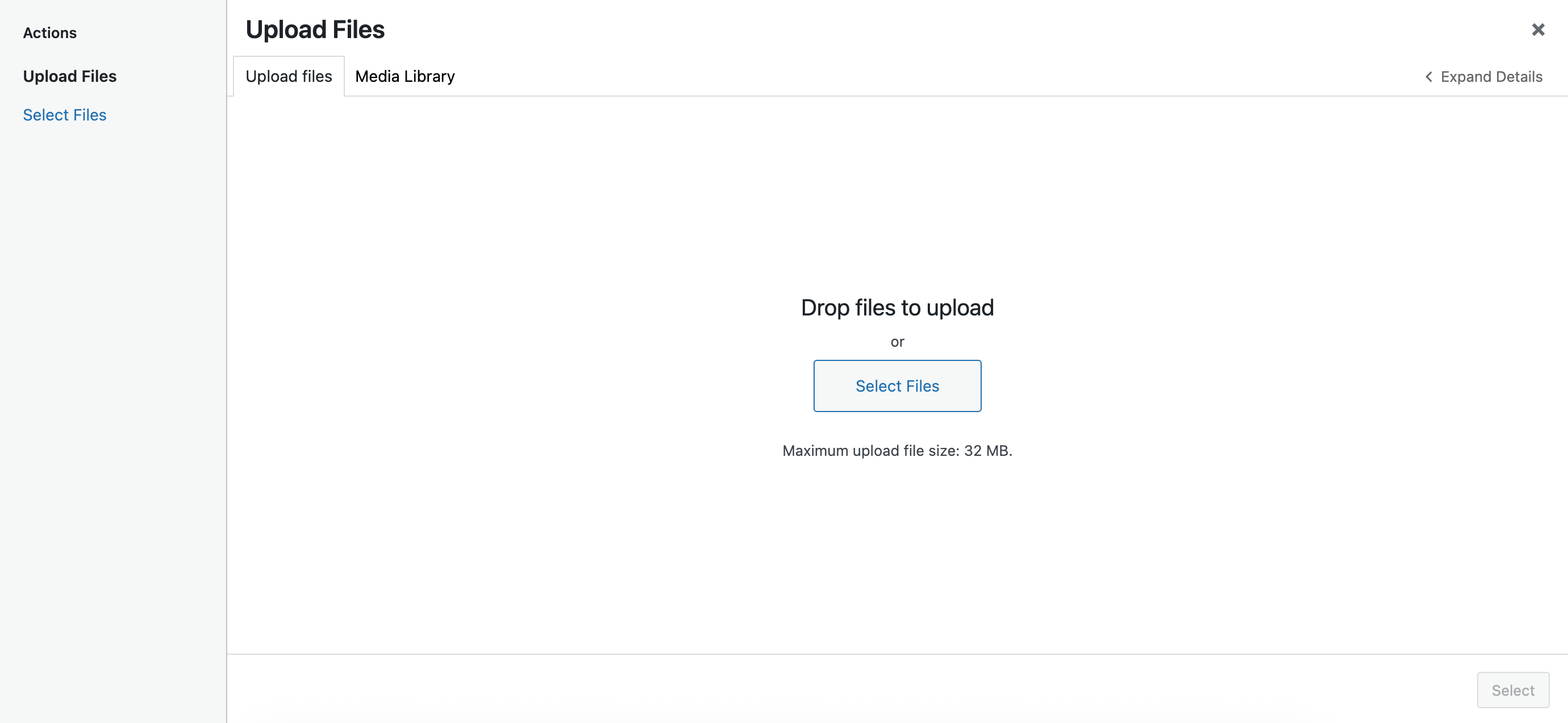
How to open the WordPress Media Library with an Upload files tab by default
By default, the Media Library in WordPress opens up with a list of media files to select from. However, you can set the default tab to Upload files with a single property.
💡 NOTE: First, make sure the global wp.media object is available in your window scope.
If wp.media is not available, ensure the Media Library scripts are enqueued in PHP via:
wp_enqueue_media();
Full reference is available in the WordPress codex.
In JavaScript, create a frame.
const myFrame = wp.media({
        title: 'Add images',
        library: {
          type: 'image'
        }
      });
Use the open method to open the actual Media Library:
myFrame.open()
The config above will open Media Library with the “Add media” tab by default, where all the media files are listed.

To open the Media Library with the Upload files tab by default, you’ll need to specify an additional property in your frame’s Library object.
That is the contentUserSetting property, which should be set to false; by default, it is set to true.
If you’re using a single frame without any states, you can just add this snippet to your code. Which will set the contentUserSetting property’s value.
wp.media.controller.Library.prototype.defaults.contentUserSetting = false;
Then, on the next Media Library frame open, you should see the Upload files tab active by default.
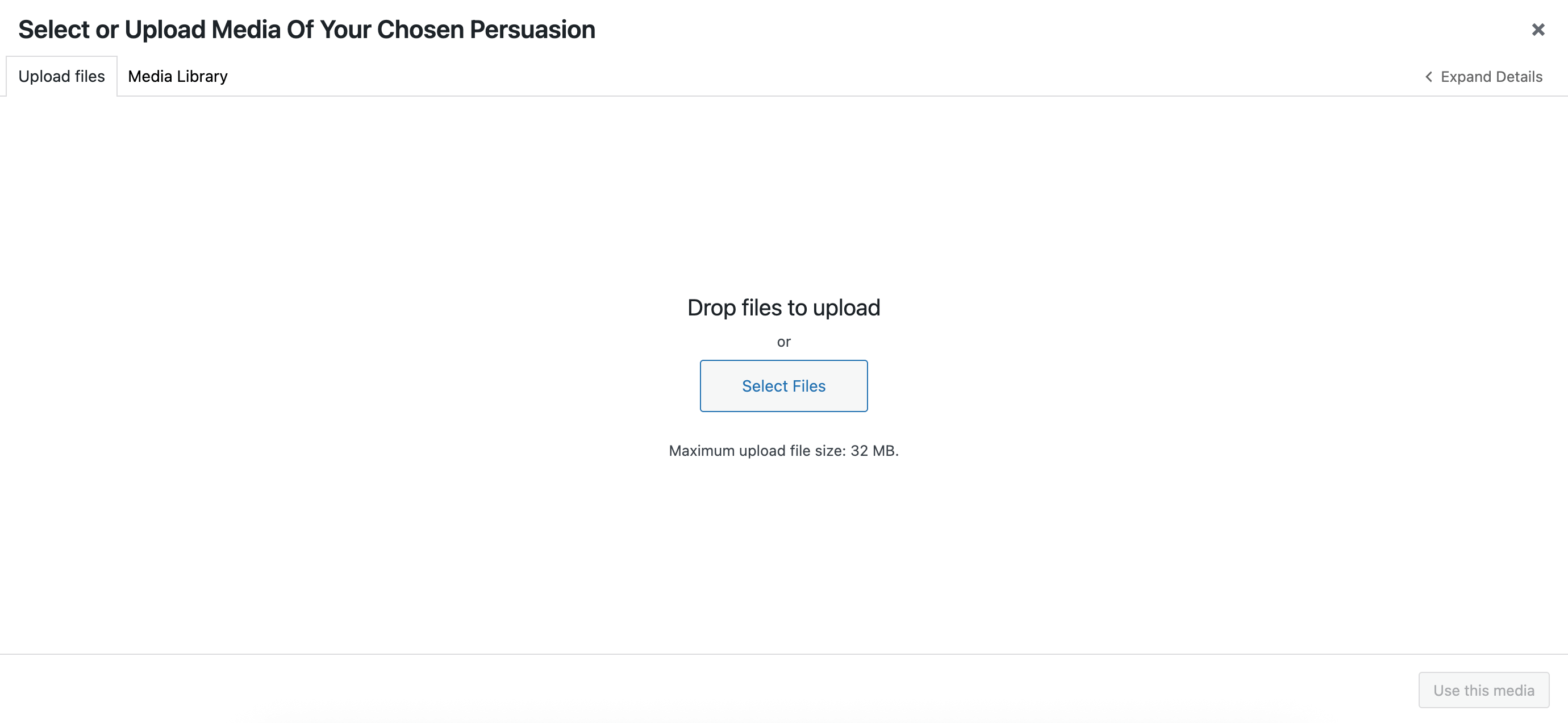
Similarly, if you use states with your frame, then for the upload state, set the contentUserSetting property.
const myFrame = wp.media({
  state: 'select', // Default state of the frame
  title: 'Select images',
  library: {
    type: 'image'
  },
  states: [
    new wp.media.controller.Library({
      id: 'upload',
      title: 'Upload image',
      contentUserSetting: false // Make an upload file tab open by default
    }),
    new wp.media.controller.Library({
      id: 'select',
      title: 'Select images'
    })
  ]
});
Then, after you change the state, the Upload tab will be active on the next opening of the frame.
myFrame.setState('upload');
myFrame.open();